macOS: installing CIAO 4.18 and CALDB 4.12.4 with the CIAO .dmg file.
This installation option is ONLY available to macOS users with permission to install into the Applications folder. For installation into other folders users must use either the ciao install script method or conda package manager.
![[NOTE]](../imgs/note.png)
If you are upgrading CIAO 4.18 to the latest version you must first Trash the previous /Applications/ciao-4.18 folder. This is done by opening the Applications folder in Finder and then dragging the ciao-4.18 folder to the Trash. You can check if your installation is up-to-date using the check_ciao_version command. The ciaover command will show the latest version
$ ciaover -v
The current environment is configured for:
  CIAO        : CIAO 4.18.0 Monday, December 08, 2025
  Contrib     : Package release 2  Thursday, July 9, 2026
  bindir      : /Applications/ciao-4.18/bin
  Python path : /Applications/ciao-4.18/bin
  CALDB       : 4.12.4
  ...
-
Please be aware of the system requirements and the following issues before installing CIAO 4.18 (see the watchout page for more information):
- DS9 v8.7b2 is incompatible with Linux Ubuntu 25.10.
-
macOS users must install recent versions of XQuartz and XCode
-
CIAO 4.18 does not support 32-bit Linux, CentOS7 or macOS Catalina (10.15) and earlier. CIAO does not provide a native Windows build. However, while not officially supported, CIAO does appear to be compatible with Windows Subsystem for Linux (follow link for tips installing WSL and CIAO).
-
Download the disk image file for your CPU type:
- Apple Silicon (M1/M2/etc, ARM): ciao-4.18.0-2a-arm64.dmg (4.6Gb)
- AMD/Intel: ciao-4.18.0-2a-x86_64.dmg (4.6Gb)
This will download and install CIAO, Sherpa, MARX, and Python 3.12 along with the base CALDB calibrations files.
If your connection times out when trying to download these files, they can also be found on our external Google Drive Folder.
-
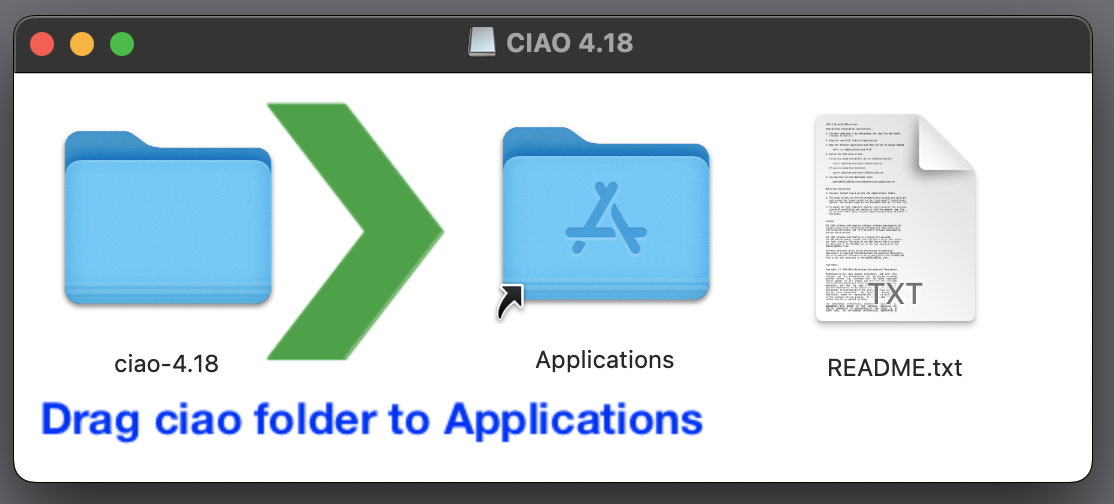
Double click to open .dmg disk image file. You will see the following folder:
-
Now drag the ciao-4.18 folder onto the Applications folder. This will copy all the files into place.
After the copy is complete, close the .dmg folder.
System Extension Blocked pop-upSome users have reported that a message appears when the copy starts that reads:
System Extension Blocked.
A program tried to load new system extension(s) signed by "Silicon Laboratories Inc." that need to be updated by the developer.Simply click "OK" to proceed.
-
Open the Terminal application and run the following command:
xattr -rc /Applications/ciao-4.18
This command only needs to be run once when CIAO is installed.
Failure to run this command will result in Security warnings popping up each and every time any CIAO command is run.
-
Set up an alias to start CIAO.
For csh and tcsh users:
alias ciao "source /Applications/ciao-4.18/bin/ciao.csh"
for bash and zsh users.
alias ciao="source /Applications/ciao-4.18/bin/ciao.sh"
Users may wish to add this alias command to their start-up scripts. For bash and zsh the alias can be added to the $HOME/.bash_profile or $HOME/.bashrc file. For tcsh the alias can be added to the $HOME/.tcshrc or $HOME/.cshrc file.
The start-up scripts are automatically sourced when the user opens a new terminal window. To use the newly created alias in existing, open terminal windows users need to source the start-up script.
-
This alias should then be called in the terminal in which you plan to use CIAO (multiple terminals can be set up to use CIAO at the same time). When called, a version message will be displayed:
unix% ciao
CIAO 4.18.0 Monday, December 08, 2025
  bindir      : /soft/ciao-4.18/bin
  CALDB       : 4.12.4
Please review the notes on starting and installing CIAO for potential conflicts between CIAO and other systems, such as XMM SAS and HEASoft.
The ciaover script can be used to display the CIAO and CALDB versions (it reports the same information that the ciao alias above does, and extra information is displayed when called with the -v flag). The --version flag to python can be used to display the Python version in use:
unix% python --version
Python 3.12.12
-
Run the CIAO smoke tests:
$ cd $ASCDS_INSTALL
$ bash test/smoke/bin/run_smoke_tests.sh
If there are any errors reported during the smoke tests, users can check the smoke test bugs page for possible solutions.
-
(Optional): Install blank sky background CALDB files
The ACIS and HRC blank sky background files are not included in the .dmg file. Users who need these files for their analysis will need to manually install them.
Option 1. Use the download_obsid_caldb script to download the blank sky files needed for the analysis of your specific observations. For example:
$ download_obsid_caldb acisf12345N006_evt2.fits outdir=$CALDB background=yes
where acisf12345N006_evt2.fits is the file name of the events file with which you want to use the blank sky files.
Option 2. Manually download and install the full set of blank sky files from the CALDB page. For example to download the ACIS blank sky files you would do something like:
$ ciao
$ cd $CALDB
$ curl -O https://cxc.cfa.harvard.edu/cdaftp/arcftp/caldb/acis_bkgrnd_4.9.7.tar.gz
$ tar xfz acis_bkgrnd_4.9.7.tar.gz
and/or for the HRC blank sky files:
$ ciao
$ cd $CALDB
$ curl -O https://cxc.cfa.harvard.edu/cdaftp/arcftp/caldb/hrc_bkgrnd_4.7.7.tar.gz
$ tar xfz hrc_bkgrnd_4.7.7.tar.gz
- Finished! CIAO is now installed and you can begin your data reduction and analysis work.
Send an email message to: chandra-announce+subscribe@cfa.harvard.edu